
FiturFeatures

Tandai di timeline, tanpa ribetMark right on the timeline

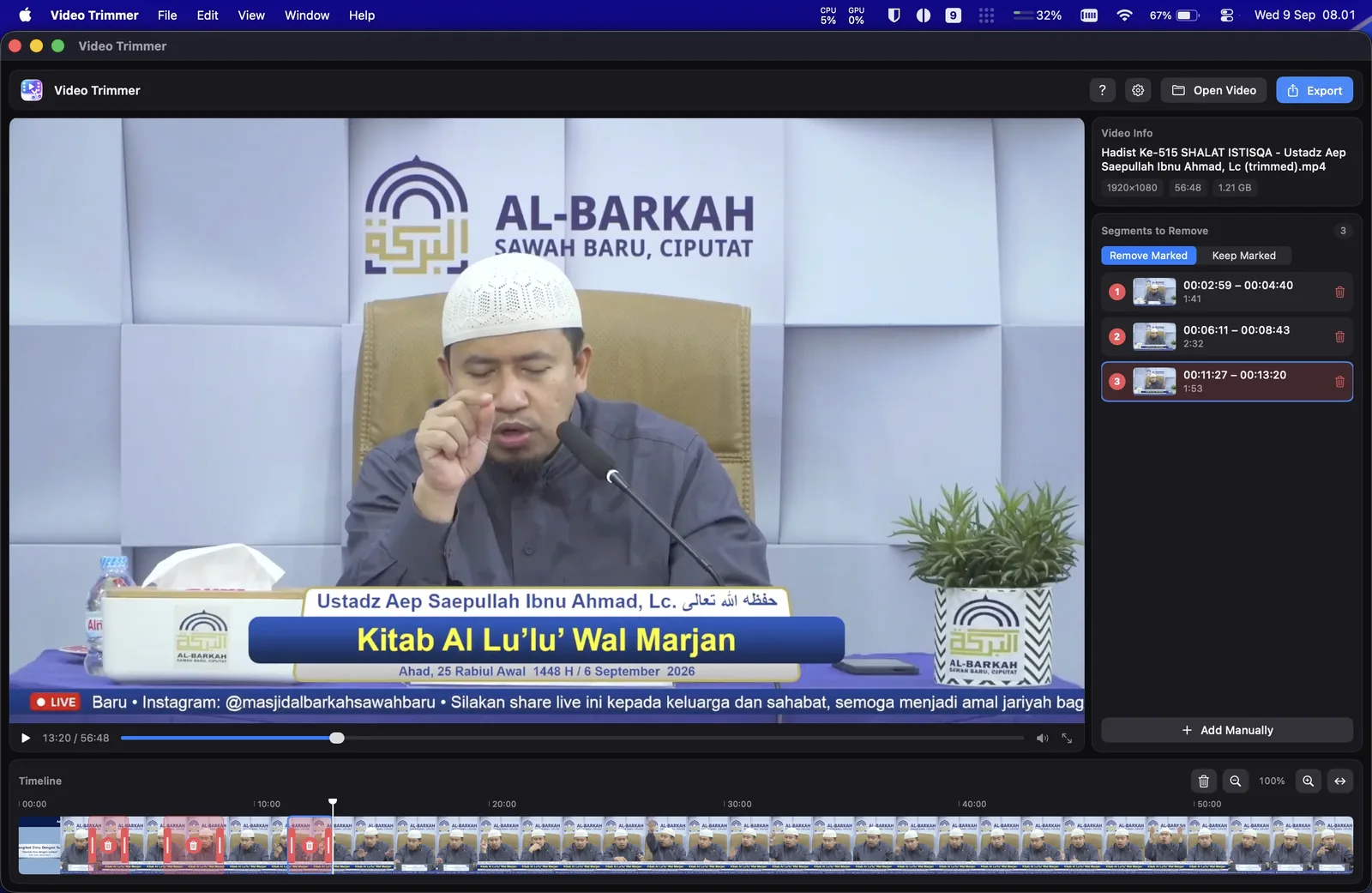
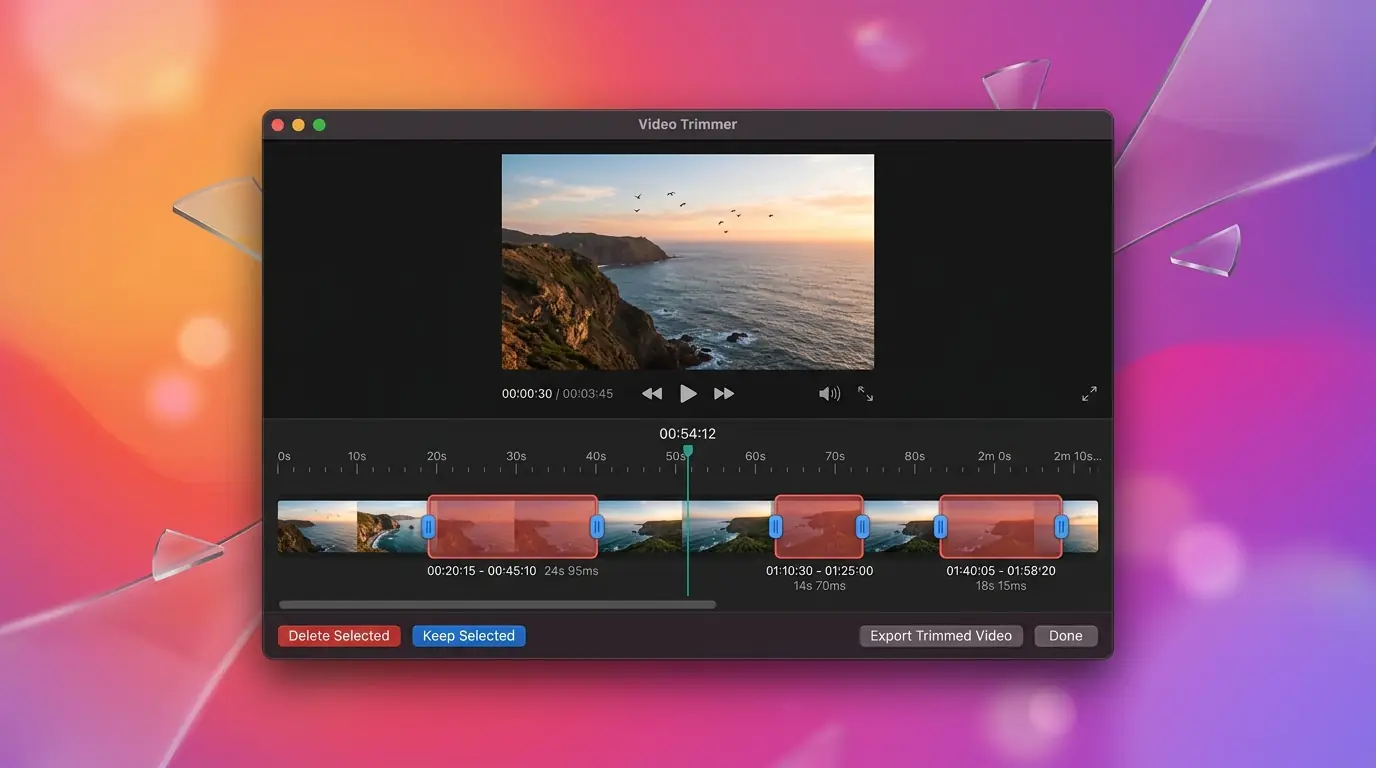
Seret di timeline thumbnail untuk menandai satu bagian, lalu geser pegangannya untuk menyetel. Bagian tidak pernah saling tumpang tindih. Butuh waktu persis? Klik dua kali segmen untuk mengetik awal dan akhirnya.Drag across the filmstrip timeline to mark a stretch, then drag the handles to fine-tune. Segments never overlap. Need exact times? Double-click a segment to type its start and end.

Hapus yang ditandai, atau simpan yang ditandaiRemove Marked or Keep Marked

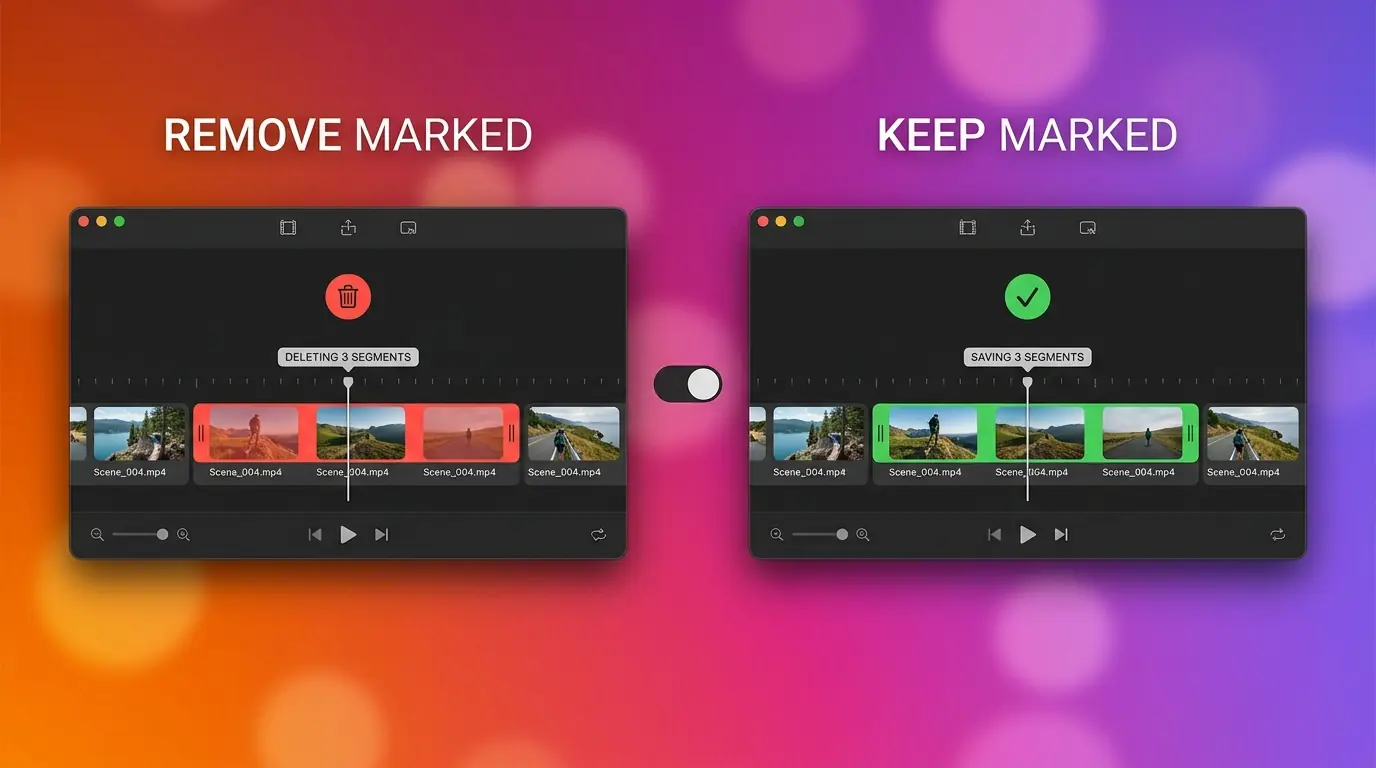
Tanda yang sama bisa dibaca dua arah: Remove Marked membuang tanda dan menyimpan sisanya, Keep Marked kebalikannya. Balik saklarnya untuk membalik hasil.The same marks read both ways: Remove Marked drops them and keeps the rest, Keep Marked does the opposite. Flip the switch to invert the result.

Pecah jadi beberapa berkasSplit into separate files

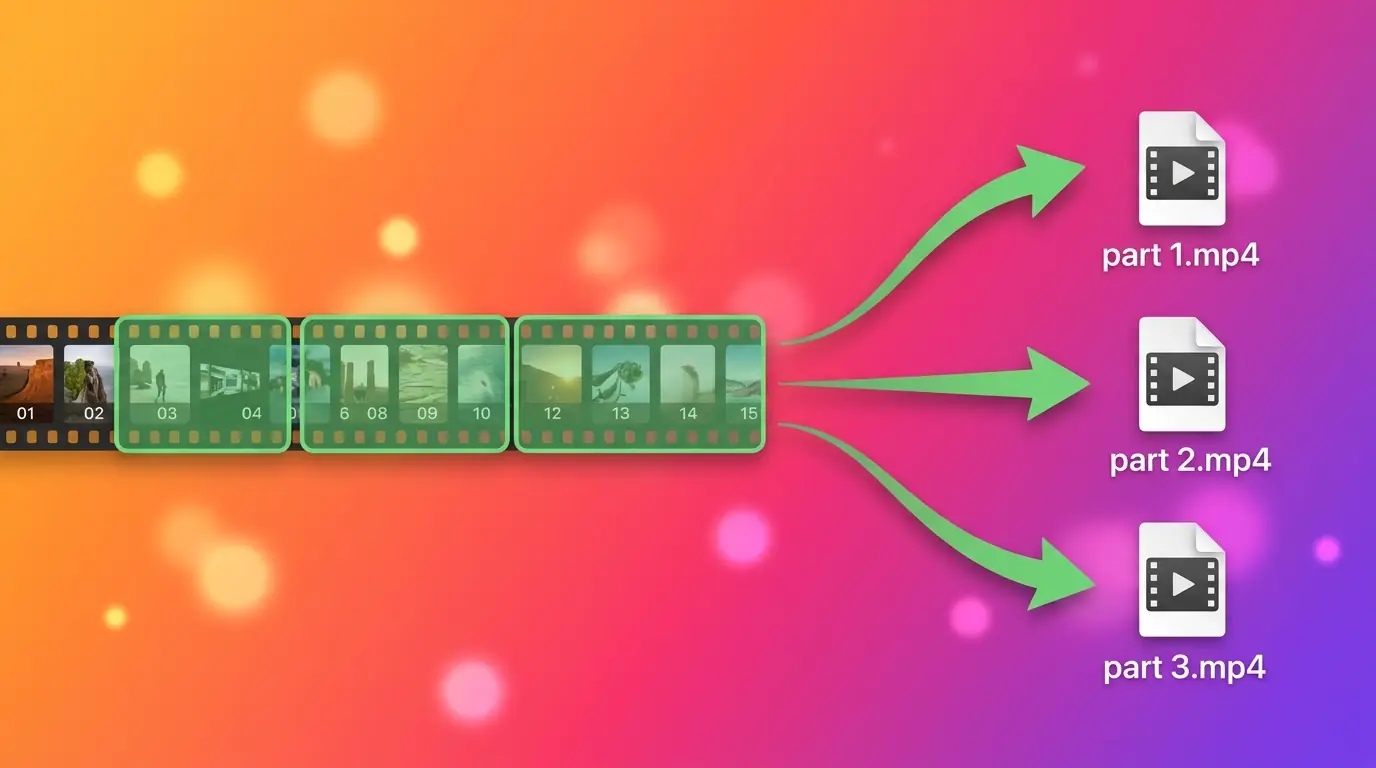
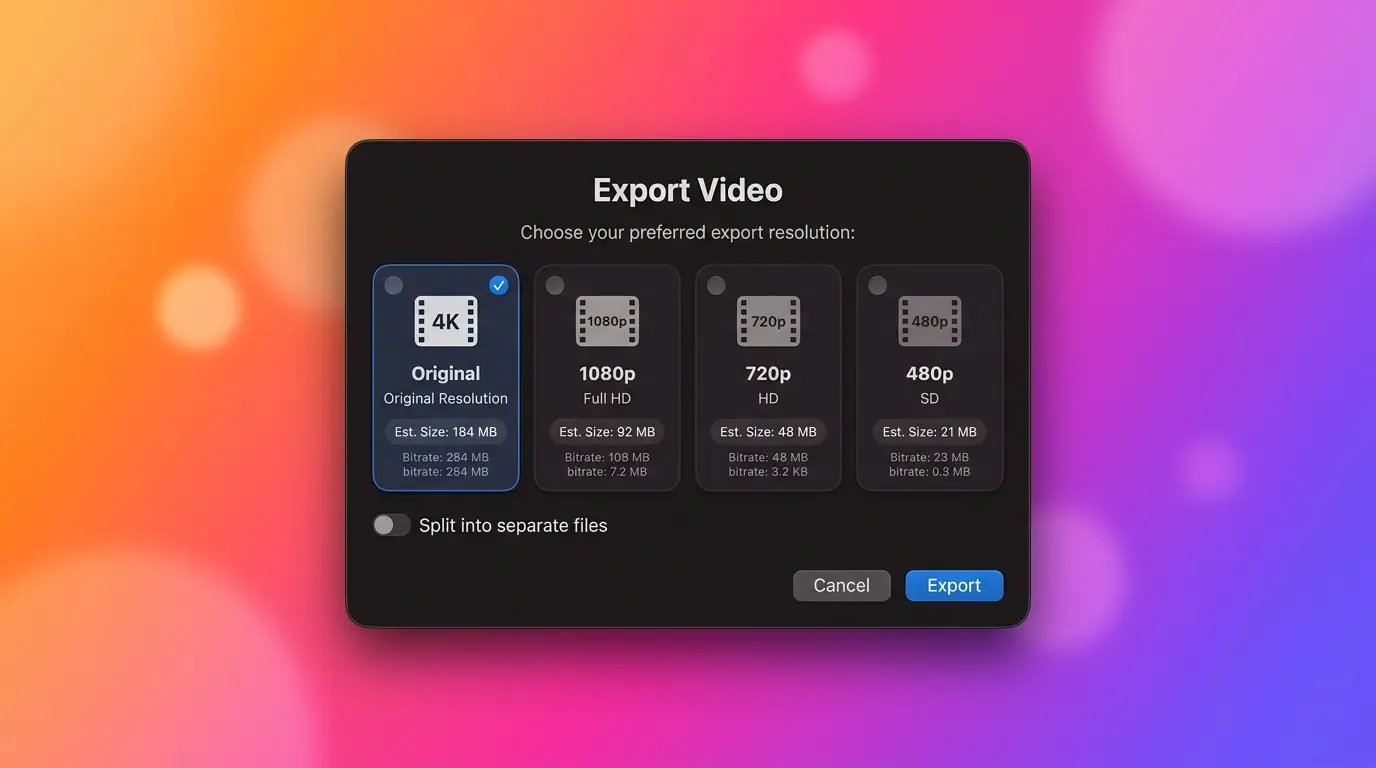
Setiap bagian hasil bisa jadi video sendiri: tandai tiga bagian di mode Keep dan kamu mendapat tiga berkas, bukan satu gabungan.Each resulting stretch can become its own video: mark three parts in Keep mode and you get three files rather than one joined export.

Ekspor cepat dengan perkiraan ukuranFast export with size estimates

Ukuran asli atau turun ke 1080p / 720p / 480p, masing-masing dengan perkiraan ukuran hasil. Encoding perangkat keras lewat VideoToolbox, biasanya sekitar 7× realtime di Apple Silicon, dengan progres, ETA, dan tombol batal.Original resolution or downscale to 1080p / 720p / 480p, each with an estimated output size. Hardware encoding through VideoToolbox, typically around 7× realtime on Apple Silicon, with progress, ETA and cancel.

Cara memasangHow to install

Homebrew adalah cara termudah — satu perintah, tidak ada langkah lain:

Homebrew is the easiest way — one command, nothing else to set up:

brew install --cask ahmadarif-lab/tap/video-trimmer

Perintah ini menambahkan tap ahmadarif-lab/tap dan langsung membersihkan flag karantina, jadi aplikasi terbuka tanpa peringatan Gatekeeper. Lalu buka Video Trimmer dari Applications.

This adds the ahmadarif-lab/tap tap and clears the quarantine flag, so the app opens straight away — no Gatekeeper warning to click through. Then open Video Trimmer from Applications.

  1. Buka Video Trimmer dari Applications, jatuhkan video ke jendelanya, seret di timeline untuk menandai bagian yang mau dibuang (atau disimpan), lalu klik Export. Instalasi manual dari DMG juga butuh brew install ffmpeg, atau pasang dari panel settings; lewat Homebrew sudah otomatis.
  2. Lewat DMG: unduh berkas di atas, buka, lalu seret Video Trimmer ke Applications.
  3. Video Trimmer ditandatangani ad-hoc, bukan dengan Developer ID dan dinotarisasi, jadi macOS memblokir pemasangan pertama dari DMG. Bersihkan sekali lewat Terminal: xattr -dr com.apple.quarantine /Applications/Video Trimmer.app, atau buka lewat System Settings → Privacy & Security → Open Anyway.
  4. Untuk memperbarui: instalasi Homebrew tinggal brew upgrade --cask video-trimmer, atau klik pembaruan yang ditawarkan aplikasi sendiri. Instalasi manual dari DMG akan diarahkan ke halaman rilis GitHub.
  1. Open Video Trimmer from Applications, drop a video onto its window, drag across the timeline to mark the parts to remove (or keep), then click Export. A manual DMG install also needs brew install ffmpeg, or install it from the settings panel; Homebrew does that for you.
  2. Via DMG: download the file above, open it, then drag Video Trimmer into Applications.
  3. Video Trimmer is ad-hoc signed rather than signed with a Developer ID and notarized, so macOS blocks the first launch from a DMG. Clear it once from Terminal: xattr -dr com.apple.quarantine /Applications/Video Trimmer.app, or open it once through System Settings → Privacy & Security → Open Anyway.
  4. To update: a Homebrew install is just brew upgrade --cask video-trimmer, or click the update prompt the app offers on its own. A manual DMG install opens the GitHub release page instead.

PrivasiPrivacy

Videomu tidak pernah meninggalkan Mac. Semua pemotongan dan encoding dijalankan lokal oleh ffmpeg; Video Trimmer tidak punya server dan tidak ada akun.

Your video never leaves your Mac. All cutting and encoding is done locally by ffmpeg; Video Trimmer has no server and no account.

Satu-satunya akses jaringan milik aplikasi adalah memeriksa GitHub Releases API repo ini untuk versi baru (saat dibuka dan tiap 6 jam), tanpa mengirim datamu. Memasang atau memperbarui ffmpeg dan aplikasi lewat Homebrew berarti ada komunikasi dengan infrastruktur Homebrew dan GitHub.

The app's only network access is asking this repo's GitHub Releases API for a newer version (at launch and every 6 hours), without sending your data. Installing or updating ffmpeg and the app through Homebrew means talking to Homebrew's and GitHub's infrastructure.

Tanpa iklan, tanpa analitik pihak ketiga, tanpa pelaporan crash.

No ads, no third-party analytics, no crash reporting.

Kebijakan PrivasiPrivacy Policy · Syarat & KetentuanTerms of Service

Riwayat versiVersion history

Versi lama tetap bisa diunduh. Untuk memastikan berkas tidak berubah, cocokkan SHA-256-nya dengan shasum -a 256 namaberkas.Older versions stay available. To verify a file is unchanged, compare its SHA-256 with shasum -a 256 filename.

v1.3.0

13 September 2026September 13, 2026 TerbaruLatest
  • Ubah waktu segmen secara persis. Klik dua kali segmen — di timeline atau di daftar samping — atau klik kanan lalu pilih Edit Times... untuk mengetik awal dan akhir yang tepat, tanpa harus menyeret. Berguna saat timeline terlalu di-zoom in atau out untuk meraih tepi yang dimaksud.
  • Klik kanan juga menyediakan Delete sebagai alternatif ikon tempat sampah.
  • Edit a segment's exact times. Double-click a segment — on the timeline or in the sidebar list — or right-click it and choose Edit Times... to type an exact start and end instead of dragging. Useful when the timeline is zoomed too far in or out to grab the edge you want.
  • Right-click also offers Delete as an alternative to the trash icon.
VideoTrimmer.dmg · universal · 2,0 MB2.0 MB
SHA-256b1718a524c6830e8091eb0ab5facf06e388bd55b44cfd740ee5541473b55b336

v1.2.2

11 September 2026September 11, 2026
  • Memeriksa pembaruan ffmpeg tidak lagi memunculkan kotak log kosong. Kotak log kini hanya tampil saat sebuah perintah benar-benar berjalan.
  • Checking for an ffmpeg update no longer shows an empty log box. The log box now only appears while a command is actually running.
VideoTrimmer.dmg · universal · 2,0 MB2.0 MB
SHA-256a1b0eec55c80cf35f2a6af0e12d0f0cc5ffc2368b9eb8cdecc5e8fb1b500ff83

v1.2.1

11 September 2026September 11, 2026
  • Spinner saat memeriksa pembaruan: bagian Video Trimmer di panel settings kini mengganti tombolnya dengan spinner dan "Checking for updates...", sama seperti bagian FFmpeg, bukan sekadar membuat tombolnya abu-abu. Memasang pembaruan juga menampilkan langkah yang sedang berjalan.
  • A spinner while checking for updates: the Video Trimmer section of the settings panel now swaps its button for a spinner and "Checking for updates...", just like the FFmpeg section, instead of only greying the button out. Installing an update shows the step it's on too.
VideoTrimmer.dmg · universal · 2,0 MB2.0 MB
SHA-256f6eb6ccd6b17de5afd50c888aa470cebb468379572e14cc0e1f1b1b5274b8bef